
Can I run the floating license server as a service?
Yes you can. One of the advantages of running the server as a service is that the user can sign out from the machine and the floating license server will keep on running.
The procedure is different according to the software version that you are using.
– For Exostiv software v1: click here.
– For Exostiv software v2: click here.
Instructions for Exostiv software v2 license server.
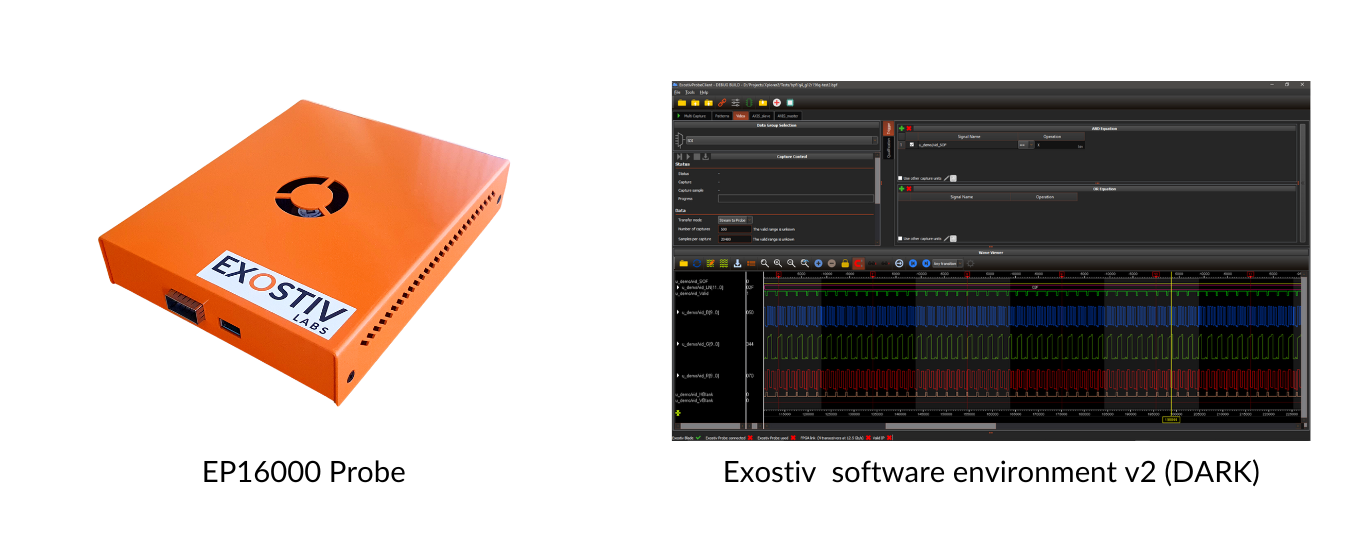
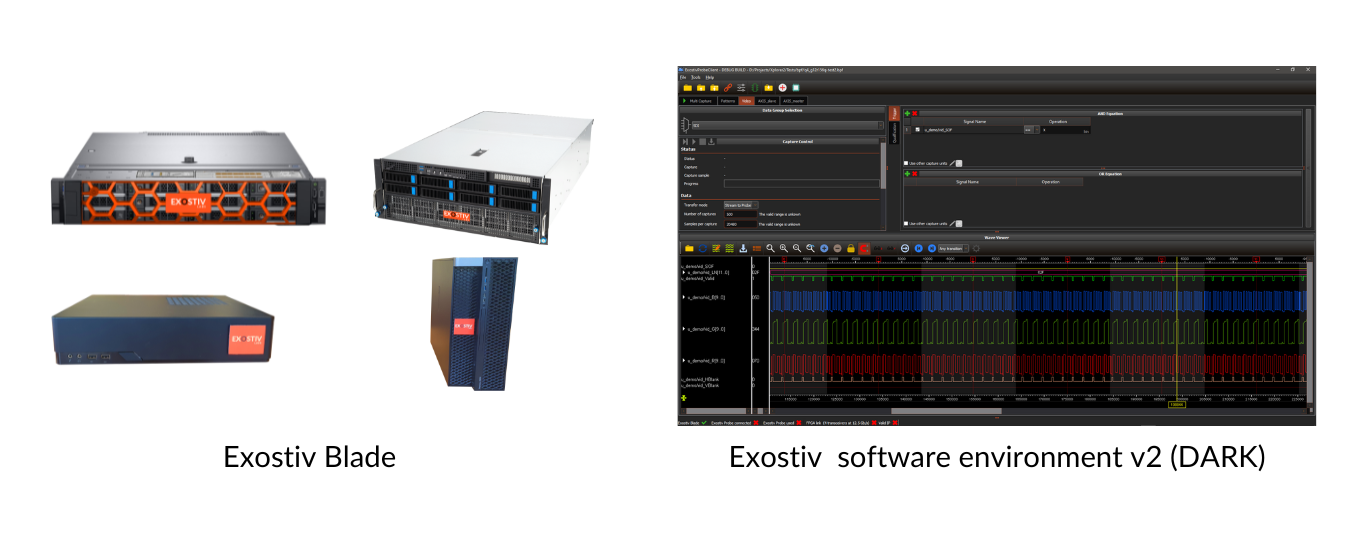
This software is available with Exostiv Probe EP16000 and Exostiv Blade
Linux OS
The license server has a GUI and always needs a X server. The solution consists in installing ‘Xvfb’ virtual frame buffer. Xvfb implements the X11 display server protocol into virtual memory without showing any screen output.
The following desciption targets Red Hat based systems. Adapt as needed for Debian based systems or others.
To install Xvfb, type : sudo dnf install xorg-x11-server-Xvfb
Following might also be needed : sudo dnf install xorg-x11-fonts-Type1 xorg-x11-fonts-75dpi
A configuration file is used to configure the license server. See ’ExoLicSrv.cfg’ in the zip file provided at the end of this article.
Please complete the file with a valid license key, TCP port number and logging path if needed.
The script file ExoLicSrv_NoGui.sh is used to configure xvfb and will be called by systemd when the service is started.
Please copy both ’ExoLicSrv.cfg’ and ‘ExoLicSrv_NoGui.sh‘ into the license server’s installation folder.
Note for SELinux-based system.
SELinux normally prevents a service file from running an executable in /home folders.
To fix this type the following two commands :
sudo semanage fcontext -a -t bin_t /path/to/ExoLicSrv_NoGui.sh
sudo restorecon -v /path/to/ExoLicSrv_NoGui.sh
Finally, configure systemd to start the service.
Copy file ‘ExoLicSrv.service’ in /etc/systemd/system.
In the service file, set a valid username (User=) and working directory (APP_DIR=).
The working directory is the license server’s installation folder.
Reload the systemd configuration with ‘systemctl daemon-reload’
The service can now be started with ‘systemctl start ExoLicSrv.service’.
Command ‘systemctl status ExoLicSrv.service’ will return the status.
Command ‘systemctl stop ExoLicSrv.service’ stops the service.
To enable the service at boot time execute ‘systemctl enable ExoLicSrv.service’.
Resources
Instructions for Exostiv Dashboard v1 license server (legacy)
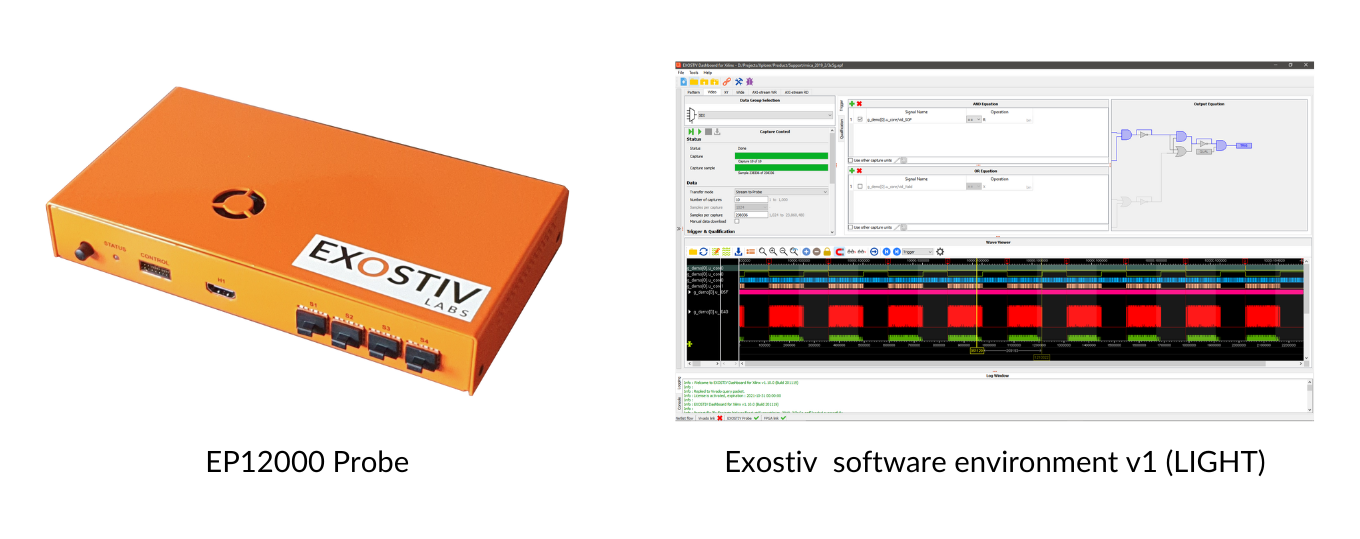
This software is available with Exostiv Probes EP6000 and EP12000
Windows OS
1. Configuration file
Since EXOSTIV Dashboard version 1.7.0, the floating license server is also provided as a service. Unlike the application, the floating license service does not provide any graphical user interface for setup – a configuration file must be provided, that contains the license server settings.
Example of floating license server service configuration file. (Click here to download the example.)
FlLicSrv.cfg
LicenseKey = AAAA-BBBB-CCCC-DDDD-EEEE-FFFF-GGGGReplace with the floating license key that you received
PortNr = 58965
Define the TCP port number from which you’d like to serve the licenses
LoggingEnable = true
Enabling logging will generate an html file ‘ExFlLicSrvSvc.html’ where all the license server events are recorded.
LoggingFolder = C:/ServerLog/ExostivDashboard
Path to the directory where the log file is stored.
2. Starting and stopping the service
Open a Command Prompt with Administrator rights.
Locate and use the following batch files:
– FlLicSrvSvcStart.bat : Starts the service with the configuration defined at 1. The configuration file must be placed at the same level as the service batch and executables.
– FlLicSrvSvcStop.bat : Stops the service.
– FlLicSrvSvcRestart.bat : Stops and starts the service (restarts the service).
Linux OS
Some of the commands below require root access.
The license server has a GUI and always needs a X server. The solution consists in installing ‘Xvfb’ virtual frame buffer. Xvfb implements the X11 display server protocol into virtual memory without showing any screen output.
To install Xvfb, type : yum install xorg-x11-server-Xvfb
Following might also be needed : yum install xorg-x11-fonts-Type1 xorg-x11-fonts-75dpi
A configuration file is used to configure the license server. See ‘FlLicSrv.cfg’ in the zip file provided at the end of this article.
Please complete the file with a valid license key, UDP port number and logging path if needed.
The script file ‘FlLicSrv_NoGui.sh’ is used to configure xvfb and will be called by systemd when the service is started.
Please copy both ‘FlLicSrv.cfg’ and FlLicSrv_NoGui.sh’ into the license server’s installation folder.
Finally, configure systemd to start the service.
Copy file ‘FlLicSrv.service’ in /etc/systemd/system.
In the service file, set a valid User name, working directory and command to be executed.
The working directory is the license server’s installation folder.
Reload the systemd configuration with ‘systemctl daemon-reload’
The service can now be started with ‘systemctl start FlLicSrv.service’.
Command ‘systemctl status FlLicSrv.service’ will return the status.
Command ‘systemctl stop FlLicSrv.service’ stops the service.
To enable the service at boot time execute ‘systemctl enable FlLicSrv.service’.
Validated this on Ubuntu and CentOS. Both are using systemd.
The only real difference is how the Xvfb package is installed.
Resources
See also…
If you do not want to install the floating license server as a service, please check:
How do I install the license server for floating licenses?