Search
Exostiv Dashboard (v1 software) – How do I install the floating license server?
A floating license server holds a pool of licenses for a piece of software and hands them out on demand rather than tying a license permanently to one machine. When a client application starts, it requests a license “lease” from the server over the network; if a license is available in the pool, the server grants it and the client can run for the duration of the lease (or until it closes the application), at which point the license is returned to the pool for another client to use. This lets an organization buy, say, 20 licenses and share them across 100 installed machines, since usage is rarely simultaneous.
STEP 1: Install the floating license server application.
The floating license server application is included in the Exostiv Dashboard software installation package. Go to the page that corresponds to your software and download the version that corresponds to your server OS. Please note: you can installe the license server on a Linux machine and have user client machines using another OS (like Windows).
Exostiv Dashboard (v1) download page.
What is ‘license activation’?
For the license server to be able to lease a license, the license that you purchased with your Exostiv Labs product must first be ‘activated’. Activating the license uses the license key that you received at the purchase. If you have not received a license key, please contact us. Once activate, the license is ‘installed on your license server’. For instance, the license key contains the number of license seats for use with each of our products and can contain specific options (like optional software). Making sure everything is properly installed on the license server actually allows you use our products.
STEP 2: Activating your license
Check the following: is the machine where you install the license server connected to the Internet? If so, you can proceed with a ONLINE LICENSE ACTIVATION. If not: jump to OFFLINE LICENSE ACTIVATION.
Online activation is the most flexible option as moficiation to your licenses can be applied instantly. With offline activation, you’ll have to interact with someone from Exostiv Labs’ staff.
Online floating license activation
Start the floating license server application. The executable name is ‘FlLicSrv’. At opening, the Exostiv license server window opens. The license is not activated and the license server is not running.
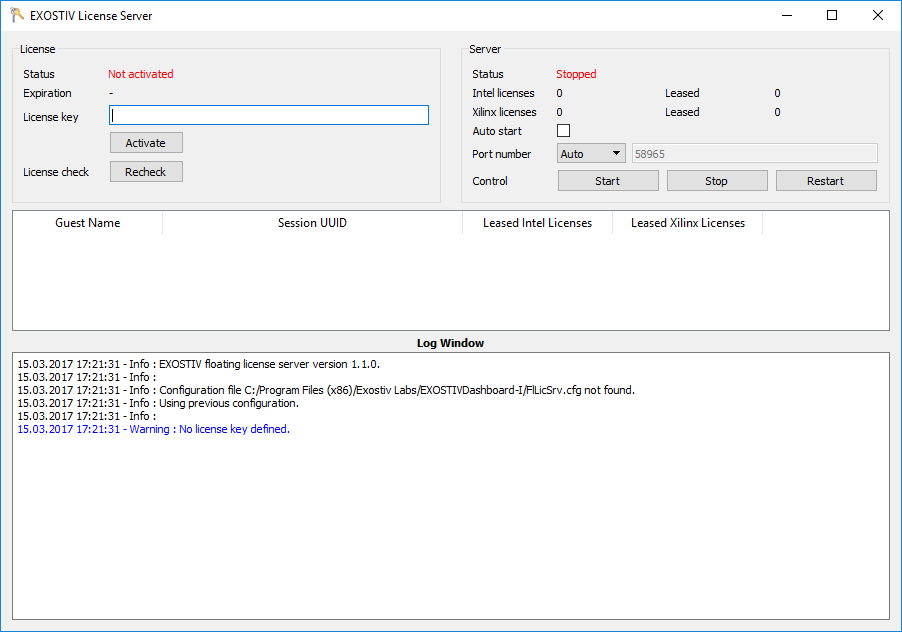
- Enter your license key into the ‘license key dialog’.
- Click on ‘Activate’.
That’s it. The license is active.
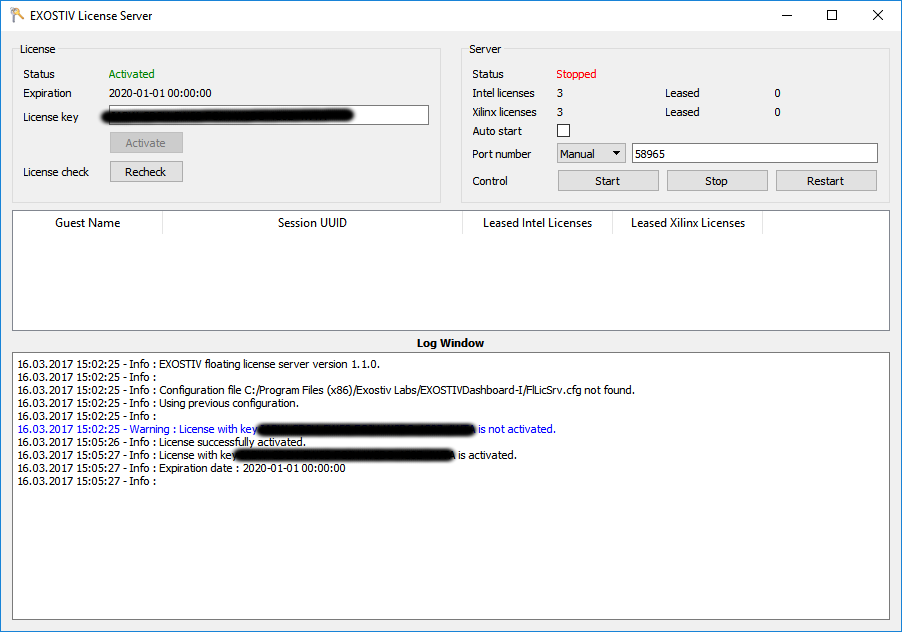
Offline floating license activation
For faster service, please always prefer online activation when possible.
Offline activation of the license in the floating license server require the ‘offline activation commands’ to be made visible.
To do this, proceed as follows:
– Download and save the following file: offline_activation
– Copy this file in the same directory as the Exostiv Dashboard license server executable (FlLicSrv).
– Or create a file named ‘offline_activation’ (no extension) at the same level as the Exostiv license server executable (FlLicSrv).
Start the floating license server application. The executable name is ‘FlLicSrv’. At opening, the Exostiv Dashboard license server window opens. The license is not activated and the license server is not running.
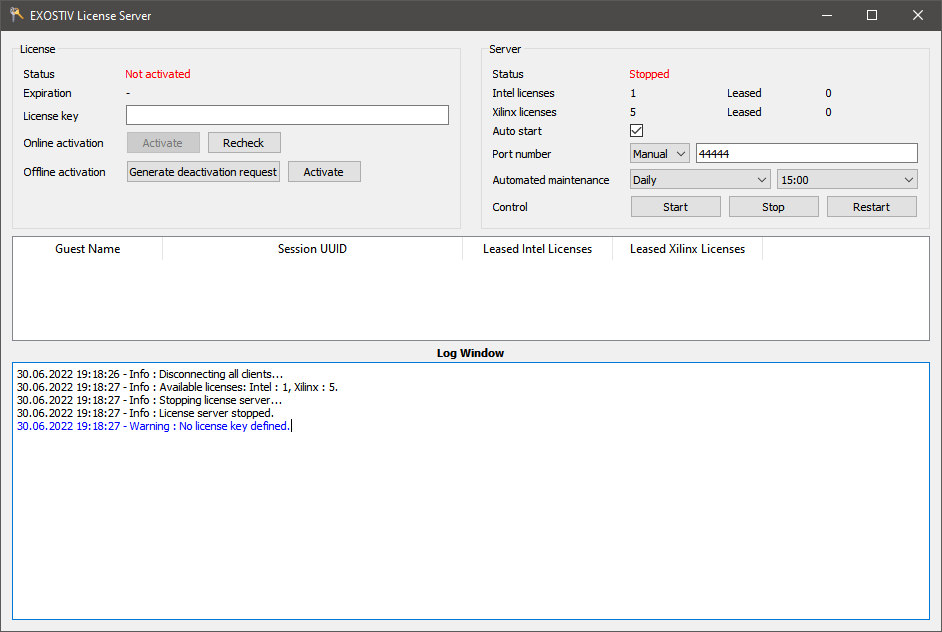
The license server application has checked for the presence of the ‘offline_activation’ file and now there are distinct ‘online’ and ‘offline’ activation controls.
- Enter your license key into the ‘license key dialog’.
- Click on ‘Generate activation request’. This generates a .xml activation request file (default name: ‘ActivationRequest.xml’). Save it.
- Send the ActivationRequest.xml file to us.
- We will generate a send you an ‘Activation Response’ file back (default name: ‘ActivationResponse.xml’). Save it.
- In the Exostiv License server, click on ‘Activate’ ! Use the activate button located next to the offline activation controls ! Don’t use the Activate button use for Online activation’. This opens a dialog from which you need to point to the Activation Response we just sent.
That’s it. The license is active.
STEP 3: Set up and start the license server
Now that the license was activated, you have to set up the server so it can lease (‘serve’) the available license seats.
- Define the ‘port number’. This can be any available port on the server machine. It must be open and visible for the users wishing to lease a license from this license server. Set the drop down top ‘Manual’ and define the port number (example: 5678). Alternatively, you can set the port number dialog to ‘Auto’ and a port number will be selected automatically.
- Keep the port number: this parameter will have to be communicated to any of the users wanting to lease a license.
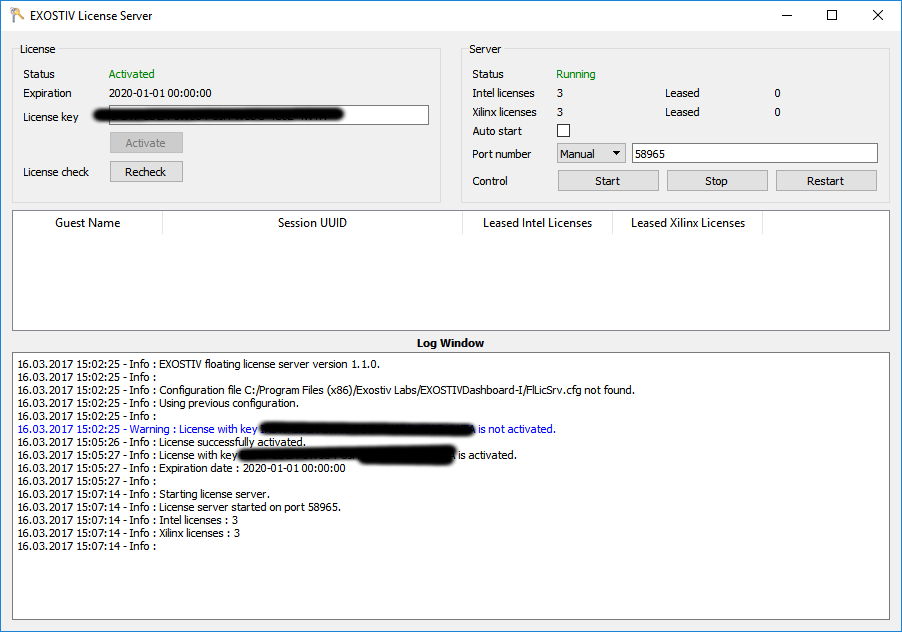
- Start the license server: hit on the ‘start’ button.
That’s it, your license server is up and running and ready to lease licenses.