
Skip to main content
Keyboard settings tab
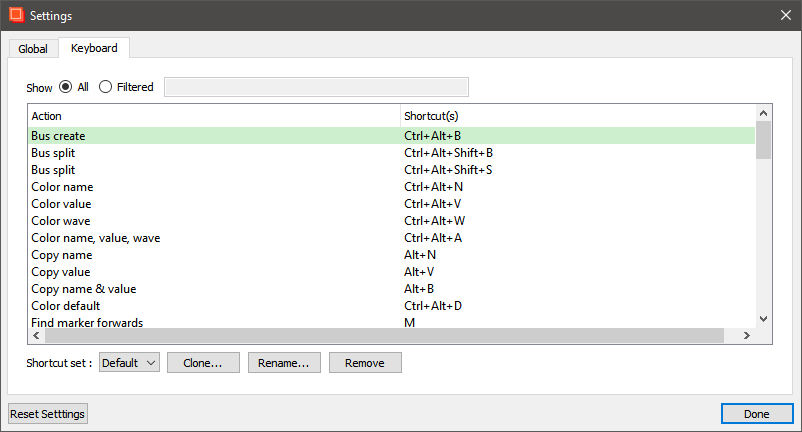
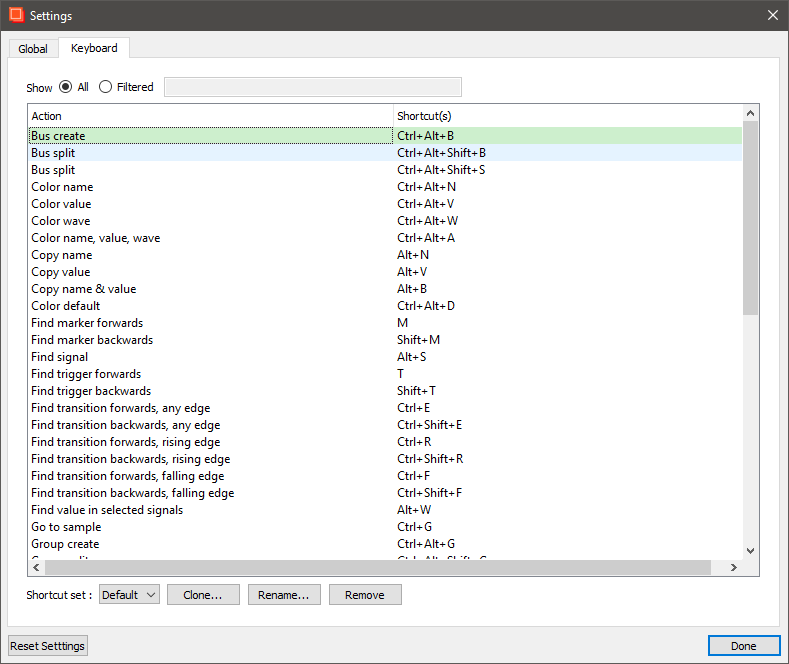
This tab displays the active keyboard shortcuts.
Search
Myriad v2 interface
Overview
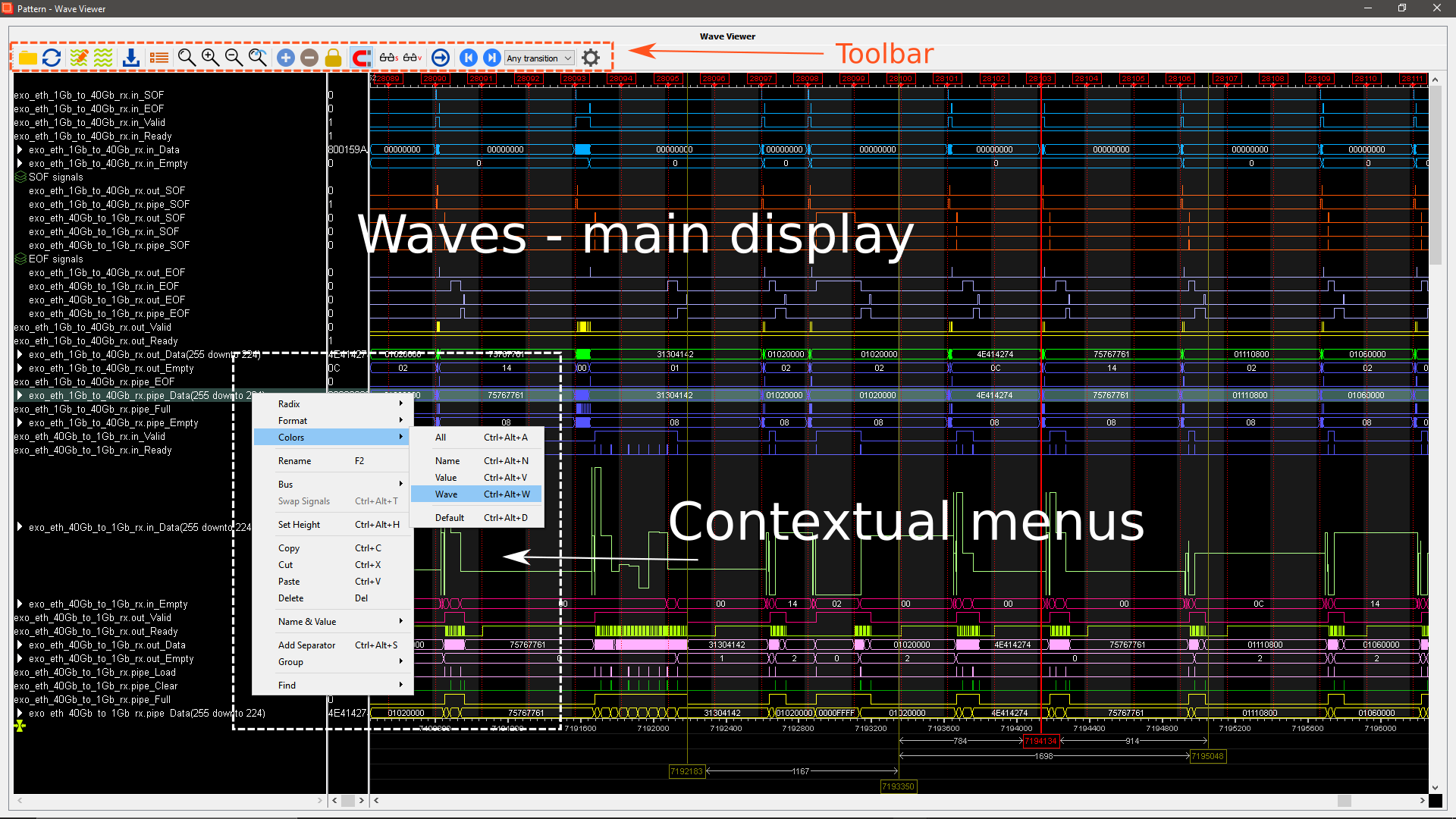
Toolbar
Myriad v2 toolbar is located at the top of the window.

Overview
 | Load database | Loads or imports a waveform database in native (.sdf), Myriad v1 legacy (.hdf) or VCD (.vcd) format. Once loaded the used format is the .sdf native format. |
 | Reload database | Reloads the same database as stored. |
 | Save waves formatting and settings | Saves the viewer gloabl settings and the opened waveform specific formatting to a .sef file. |
 | Load waves formatting and viewer settings | Loads a previously saved settings and formatting file (.sef). |
 | Export waves | Exports the waveform or a portion of it to an external file (.csv, .vcd or .bin). |
 | Select signals to display | Opens the list of the signals available for display. |
 | Zoom full | Zooms to full range. |
 | Zoom in | Increases the zoom level by one step. |
 | Zoom out | Descreases the zoom level by one step. |
 | Zoom last | Recalls the last zoom level. |
 | Add cursor | Adds a vertical cursor to the waveform window. |
 | Remove cursor | Removes the selected vertical cursor from the waveform window. |
 | Lock cursor | Locks the selected vertical cursor to its current position. |
 | Snap to transition | Automatically snaps the cursor to the closest transition of the selected signal when it is located in its immediate surroundings. |
 | Search signal | Searches a signal in the displayed signals. |
 | Search value | Searchs for a specific value of the selected signal. |
 | Go to sample nr | Allows going to a specific sample number. |
 | Search forward | Searches for the next event occurring on the highlighted / selected signal. Uses the Selection choice drop down to define the event. |
 | Search backward | Searches for the previous event occurring on the highlighted / selected signal. Uses the Selection choice drop down to define the event. |
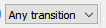 | Selection choice for forward and backward searches | Defines the type of event to search with the forward and backward event search controls. |
 | Settings | Opens the settings window. |
Settings window
This window opens when hitting the ‘settings button’ ()
Global settings tab
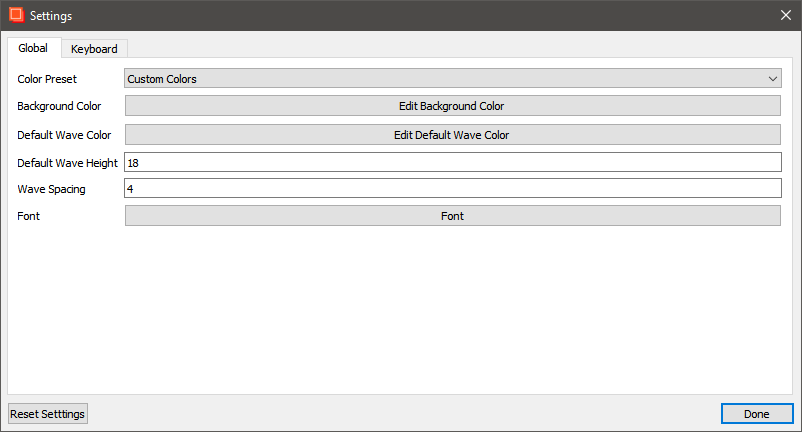
| Color Preset | Selects one the color presets for the waves. The default is 'Custom colors'. Other choices: 'Printer friendly' and 'Printer friendly black and white'. |
| Background Color | Opens a color picker window. Allows selecting the waves background color. The default color is black. |
| Default Wave Color | Opens a color picker window. Allows changing the waves default color. the system default is RGB (0,255,0). |
| Default Wave Height | Allows defining the default height of waves in pixels. The system default is 18. |
| Wave spacing | Allow defining the default spacing between waves in pixels. The sytem default value is 4. |
| Font | Opens a dialog window. Allows changing the interface font. |
| Reset Settings | Resets the above settings to the default values. |
Keyboard settings tab
This tab displays the active keyboard shortcuts.
| Show | Options All / Filtered. Displays all the shortcuts in the set or a subset of them. |
| Shortcut set | (Drop down list) - available: - Default - (list of user-defined shortcuts). Selects the desired shortcut set. The 'default' shortcut set cannot be edited. Creating a new set requires 'cloning' an existing set first. |
| Clone... | Opens a dialog where the cloned shortcut set name can be specified. Allows creating a new custom shortcut set for edition. |
| Rename... | Opens a dialog where the selected shortcut set can be renamed. Allows renaming a shortcut set. |
| Remove | Removes the selected shortcut set. |
| Reset Settings | Resets to default values. |
Contextual menus
Right-clicking anywhere in the main display areas opens the contextual menus. These menus provide options that can be applied to the selected wave(s).
Menus commands list
| First level | Second level | Description |
|---|---|---|
| Radix | Binary Hex Signed (two's complement) Signed (sign bit) | Changes the selected waves radix. |
| Format | Literal/Logic Analog | Allows selecting the display type of the selected wave. |
| Colors | All Name Value Wave Default | Opens a color picker dialog to set the color of the item selected at the menu second level. |
| Rename | - | Opens a dialog to rename the selected signal. |
| Bus | Create Bus Split Bus Swap Bus | Applies the chosen action to the selected signals or bus. |
| Swap Signals | - | Swaps the order of the selected signals. |
| Set Height | - | Opens a dialog where the height of the selected wave can be set. |
| Copy | - | Copies the selected signal(s) |
| Cut | - | Cuts the selected signal(s) |
| Paste | - | Pastes the copied or cut signals. |
| Delete | - | Deletes the selected signal(s). |
| Name & Value | Copy Name Copy Value Copy Name & Value | Provides copy functions for the selected signal name and value. |
| Add Separator | - | Adds an horizontal separator to the signal list. |
| Group | Make Group Split Group | Makes group with the selected signals or removes the selected group. |
| Find | Find Signal Find Value | Opens a dialog to find signal or value. |
Analog Wave Configuration dialog
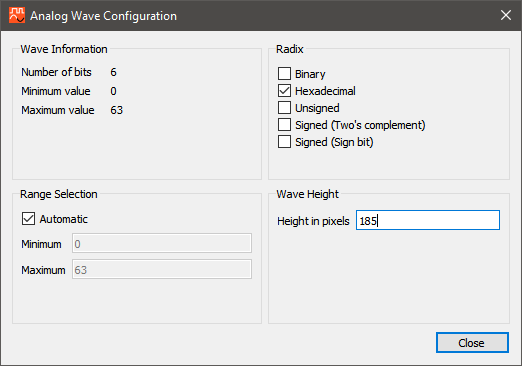
This dialog box opens when the Format > Analog command is selected.
| Group | Values / Options |
|---|---|
| Wave Information | Displays the number of bits, the minimum value and the maximum value of the selected wave. |
| Range Selection | - Automatic. If there is more than 64 bits, the MSB are displayed. - A custom Min/Max can be specified. |
| Radix | - Binary - Hexadecimal - Unisgned - Signed (Two's complement) - Signed (Sign bit + absolute value). |
| Wave Height | Height of the wave in pixels. |
The keyboard shortcuts are configurable.
To access and adjust the shortcuts list and configuration options, click on the ‘wheel’ icon in the waveform viewer icon bar…

and access the keyboard controls:
Myriad v1 (up to Exostiv Dashboard version 1.9.5):
The shortcuts are fixed.
Here is the list of Myriad v1 waveform viewer keyboard and mouse shortcuts:
| m | Find next marker |
| SHIFT + m | Find previous marker |
| l | Find previous marker |
| t | Find next trigger |
| SHIFT + t | Find previous trigger |
| r | Find previous trigger |
| Left arrow | Scroll left |
| Right arrow | Scroll right |
| Up arrow | Scroll up |
| Down arrow | Scroll down |
| f | Zoom full |
| i | Zoom in |
| + | Zoom in |
| SHIFT + i | Zoom out |
| SHIFT + + | Zoom out |
| - | Zoom out |
| o | Zoom out |
| Mouse scroll | Scroll up / down |
| CTRL + mouse scroll | Zoom in / out |
| SHIFT + mouse scroll | Scroll left / right |
| Hold CTRL + mouse select | Select zoom window (release to zoom) |
| Right click | Open context menu |
| Left click | Select signal & position marker on pointer |
| Center click | Select signal |